Want to connect with friends and other players on Roblox from your phone or tablet? Understanding how to join a group in Roblox Mobile is key for expanding your gaming experience. This guide helps United States players easily find and become part of thriving communities directly through the Roblox app, whether you are using an iPhone or an Android device. You will learn the simple steps involved, from navigating the app interface to searching for specific groups that match your interests in various games. Discover how Roblox groups can enhance your playtime, offering chances to collaborate, chat, and participate in exclusive events with fellow gamers. We cover everything you need to know about getting into a Roblox community on the go. Is it easy to find groups on the Roblox app? Yes, it is very straightforward. Can you join private groups from your mobile device? Absolutely, we will walk you through what to expect. This resource is designed to be your go-to for making connections and diving deeper into the Roblox universe, all from the palm of your hand.
How do I find a group on Roblox mobile?
To find a group on Roblox mobile, open the Roblox app, tap the three dots "More" icon, then select "Groups." Use the search bar at the top of the Groups page to type in keywords related to the community you want to join. Review the search results and tap on a group to see its details before deciding to join.
Can I join any type of group on the Roblox app?
You can join most types of groups on the Roblox app, including public groups that allow instant membership and private groups that require an approval request from an administrator. Some groups may have specific criteria or rules you need to meet. The type of group you can join is usually indicated on its profile page.
What is the process for leaving a Roblox group on mobile?
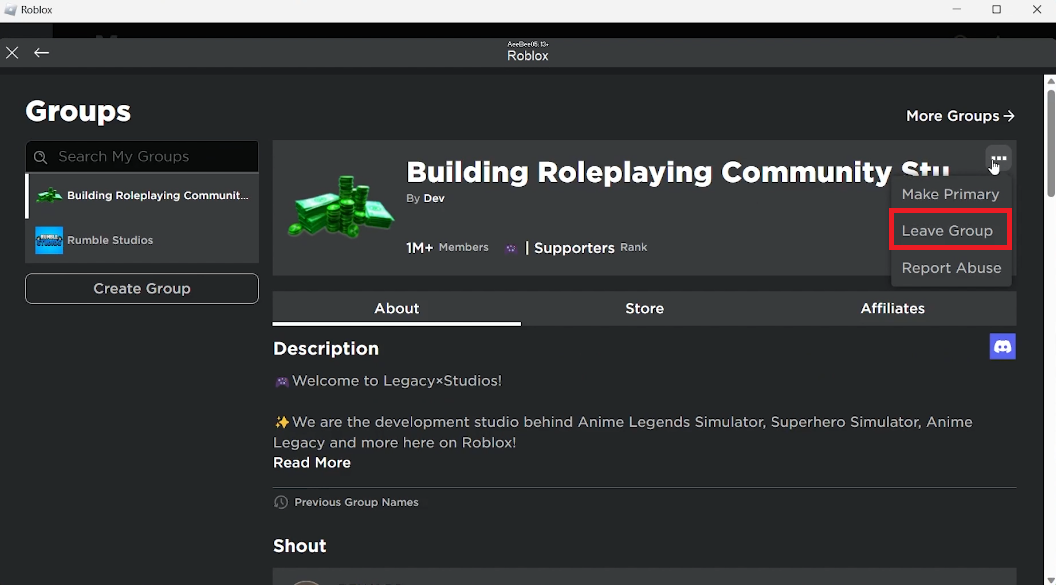
To leave a Roblox group on mobile, navigate to the "More" menu, then select "Groups." Tap on the specific group you wish to leave from your list of joined groups. On the group's profile page, look for the "Leave Group" button, which is usually found near the top or within a settings icon. Confirm your decision to exit the group.
Why would my request to join a private group be denied?
A request to join a private group might be denied for several reasons. The group might have specific requirements not met by your profile, such as age or specific game experience. Administrators may also deny requests if your profile seems inactive, violates Roblox's community standards, or if they are simply managing member numbers. Roblox usually does not provide a reason for denial.
Is group chat available on the Roblox mobile app?
Yes, group chat is available and fully functional within the Roblox mobile app. Once you join a group, you can access its "Group Wall" from the group's profile page. This allows you to read messages from other members and post your own, fostering direct communication and interaction with the group community on your mobile device.
How many groups can a Roblox player join on mobile?
A Roblox player can typically join a maximum of 100 groups on mobile, similar to the limit on the desktop version. If you have reached this limit, you will need to leave an existing group before you can join a new one. This ensures active engagement within communities and manages overall platform resources.
Can I make my own group using the Roblox mobile app?
No, you cannot create a new group directly from the Roblox mobile app. Group creation is an administrative function that requires using the Roblox website on a desktop or laptop computer. Once a group is created on the web, however, you can manage many of its features and interact with members using your mobile device.
How to Join a Group in Roblox Mobile
Joining a group in Roblox Mobile is a simple way to connect with other players who share your interests, participate in unique events, and enhance your overall gaming experience. Whether you are looking for a community centered around a specific game, a building style, or just general camaraderie, the Roblox app on your phone or tablet makes the process easy and accessible.
This guide will walk United States gamers through every step of finding and joining groups directly from their mobile device. You do not need a PC to become a part of the vibrant Roblox community; everything you need is right in the palm of your hand. Get ready to explore new connections and dive deeper into the worlds you love on Roblox.
How to Find and Join a Group on Roblox Mobile
Step-by-Step Guide to Group Membership
Becoming a member of a Roblox group from your mobile device involves just a few taps within the application. First, make sure you have the official Roblox app installed and that you are logged into your account. The mobile interface is designed for intuitive navigation, so finding the groups section is quite direct once you know where to look.
Open the Roblox app on your smartphone or tablet. At the bottom of your screen, you will typically see a navigation bar with several icons. Look for the icon that resembles three horizontal dots, often labeled as "More," and tap it. This action opens a menu with various options, including your profile, settings, and other social features.
From the "More" menu, scroll down until you locate the "Groups" option. Tapping this will take you to the main Groups page, where you can see groups you already belong to and discover new ones. Here you will find a search bar at the top, which is your primary tool for finding specific communities or exploring new interests. Simply type in keywords related to the group you want to find, such as a game name, a hobby, or a specific type of play.
Searching for the Right Community
Once you are on the Groups page within the Roblox mobile app, the search bar becomes your best friend. To find a group, type relevant keywords into the search field. For example, if you are a fan of "Adopt Me," you might type "Adopt Me fan group" or "Adopt Me traders." The search results will display various groups that match your query, along with their member count and whether they are public or private.
After reviewing the search results, tap on a group that catches your eye to view its profile page. This page provides essential information, including the group's description, rules, member list, and any associated games or activities. It is a good idea to read through this information to ensure the group aligns with your interests and expectations before you decide to join.
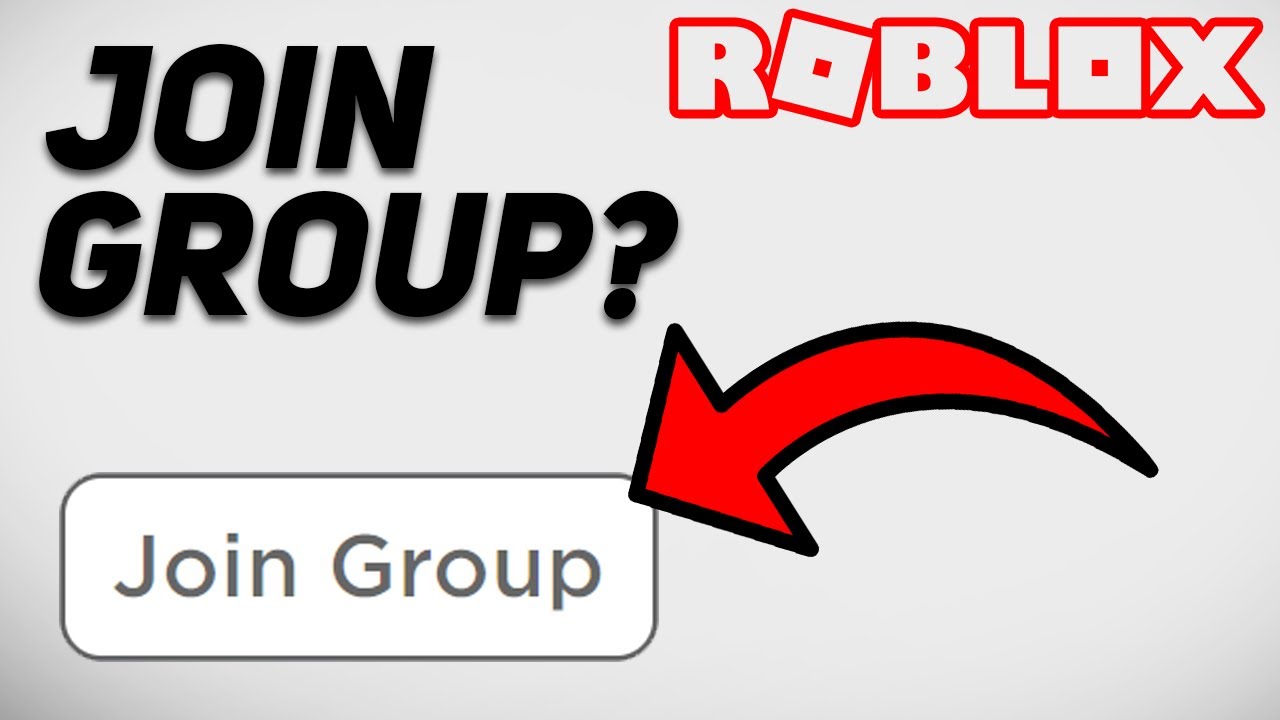
If the group is public and open for anyone to join, you will see a "Join Group" button prominently displayed on its profile page. Simply tap this button, and you will instantly become a member. If the group is private, the button might say "Request to Join" or indicate that approval is needed from a group administrator. For private groups, you will need to wait for an administrator to review and accept your request before you officially become a member.
What Happens After You Join a Group?
Once you successfully join a Roblox group on mobile, you gain access to several new features and interactions. You can often participate in group chats, engage in group walls, and sometimes even receive special in-game perks or items within games associated with that group. Your membership is now visible on your Roblox profile, and you can easily access the group's page again through the "Groups" section in the "More" menu.
Groups provide an excellent opportunity to collaborate on projects, strategize for games, or simply socialize with people who share a common passion within Roblox. Many groups also host exclusive events or offer unique advantages in their owned games, making membership highly valuable. It's a fantastic way to deepen your engagement with the Roblox platform and discover new aspects of the community.
Remember that each group has its own set of rules and culture. It is always a good practice to review these guidelines, usually found in the group's description or on its dedicated wall, to ensure you contribute positively to the community. Active participation can often lead to new friendships and a more rewarding Roblox experience on your mobile device.
Common Problems When Joining Roblox Groups on Mobile
Why Can't I Find a Specific Group?
Sometimes, locating a particular group on Roblox mobile can be tricky, even if you know its name. One common reason is a simple typo in the search bar. Always double-check your spelling to ensure accuracy. Another possibility is that the group name might be slightly different than what you expect, or it could be a private group not easily discoverable through general search if you do not have an exact name.
Additionally, some groups might be inactive or have been removed by Roblox, making them unavailable for search. If you are certain about the group's name and it still does not appear, try searching for related keywords or asking a friend who is already a member for the exact group ID. This unique identifier can often bypass search issues and lead you directly to the group's page.
It is also worth noting that if you have specific content filters enabled on your Roblox account, these might inadvertently hide certain groups from your search results. Review your account settings to ensure no restrictions are preventing you from seeing the groups you are looking for. Adjusting these filters temporarily might help in discovering broader results.
Issues with Requesting or Awaiting Approval
When you attempt to join a private group on Roblox mobile, you often send a "request to join" rather than instantly becoming a member. A common concern for players is the waiting period for approval. Group administrators or moderators must manually review and accept these requests, which can take anywhere from a few hours to several days, depending on the group's activity level and the number of requests they receive.
If your request seems to be taking an unusually long time, there are a few things to consider. First, ensure that your Roblox profile does not contain anything that might violate Roblox's community guidelines, as this could lead to requests being denied. Second, some groups have specific requirements for members, which might be outlined in their description; ensure you meet these criteria.
Unfortunately, Roblox does not typically provide a reason for denied requests, so if you are consistently rejected, you might need to try joining a different group or ensure your public profile is as appealing as possible. Patience is key when dealing with private groups, as administrators are often volunteers managing many requests.
Is There a Limit to How Many Groups I Can Join?
Yes, Roblox does impose a limit on the number of groups a single account can join. As of recent updates, a standard Roblox account can join up to 100 groups. This limit is in place to manage server resources and encourage meaningful engagement within the groups you are part of, rather than simply accumulating memberships.
If you have reached the 100-group limit and wish to join a new group, you will need to leave an existing one first. To do this on mobile, navigate to the "Groups" section, select a group you wish to leave, go to its profile page, and look for an option to "Leave Group." This will free up a slot, allowing you to join a new community that better suits your current interests.
Managing your group memberships periodically is a good practice. As your interests in Roblox evolve, some groups might become less relevant to you. Regularly reviewing your joined groups and leaving those you no longer actively participate in ensures you have space for new, exciting communities that enhance your mobile Roblox experience.
Most Asked Questions About Roblox Mobile Groups
How do I create my own group on Roblox mobile?
While this guide primarily focuses on joining existing groups, many players eventually wonder about creating their own. Unfortunately, the option to create a new group directly from the Roblox mobile app is not available. Group creation currently requires access to the Roblox website on a desktop or laptop computer.
To create a group, you must log into your Roblox account via a web browser, navigate to the "Groups" section, and select the "Create Group" option. This process involves a one-time Robux fee and requires you to set up the group's name, description, and emblem. Once created on the web, your group will be fully manageable and visible within the mobile app, allowing you to invite members and manage its activities from your phone or tablet.
This distinction between creating and managing groups highlights Roblox's platform capabilities. While mobile is optimized for play and interaction, more complex administrative tasks, like group creation, are reserved for the full web experience. After creation, however, you can certainly manage many aspects of your group directly from the mobile app.
Can I chat with group members on my phone?
Yes, absolutely! One of the primary benefits of joining a group on Roblox mobile is the ability to communicate with fellow members directly from your device. Groups often feature a "Group Wall" where members can post messages, ask questions, and share updates. This functions much like a forum or a social media feed dedicated to that specific community.
To access the Group Wall, simply go to the group's page within the Roblox app. You will typically find a section dedicated to recent posts. You can read messages from other members and add your own thoughts, fostering real-time interaction and community engagement. Some groups may also use external communication platforms, but the Group Wall is the native way to chat on Roblox mobile.
Staying connected through group chat is an excellent way to coordinate gameplay, get advice on challenges, or simply bond with like-minded players. It enriches the multiplayer aspect of Roblox, making your mobile gaming experience more social and collaborative. Always remember to follow the group's rules and Roblox's community guidelines when interacting on the Group Wall.
Are there any special features for groups on mobile versus PC?
The core functionality of Roblox groups remains consistent across both mobile and PC platforms, ensuring a seamless experience regardless of how you access the game. You can join groups, view their walls, participate in discussions, and access group-related perks on both. The key difference often lies in the user interface and navigation, which are optimized for each device type.
On mobile, the interface is designed for touchscreens, with larger buttons and simplified menus to make navigation easier on smaller screens. Features like searching for groups and viewing group details are streamlined for quick access. While the mobile app provides robust tools for interacting within groups, certain administrative tasks, like creating a new group or heavily customizing group roles and permissions, are exclusively available on the PC version of the Roblox website.
Ultimately, your choice of platform depends on your preferred gaming style. Mobile offers unparalleled convenience for on-the-go interaction and casual group engagement. The PC provides a more comprehensive suite of tools for group management and content creation. Both platforms allow for full participation in the vibrant social ecosystem of Roblox groups.
Join Roblox groups on mobile, Roblox app group joining, Find groups on Roblox phone, How to connect with players Roblox mobile, Roblox mobile group features, Steps to join a Roblox community, Search Roblox groups iPhone, Roblox group membership Android, Mobile Roblox social features, Easy group joining Roblox app
35
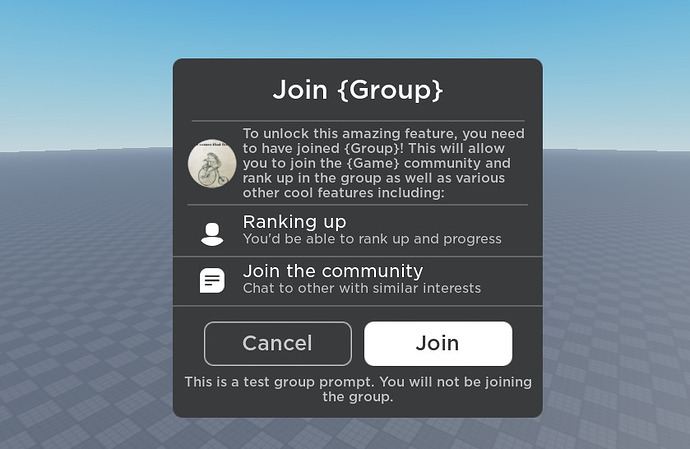


How To Join A Group On Roblox Mobile 2026 YouTube . Roblox Join Group 2 690x449 . How To Join A Group In Roblox YouTube . How To Join Roblox Players Seamlessly A 2026 Guide . How To Join Roblox Players Seamlessly A 2026 Guide


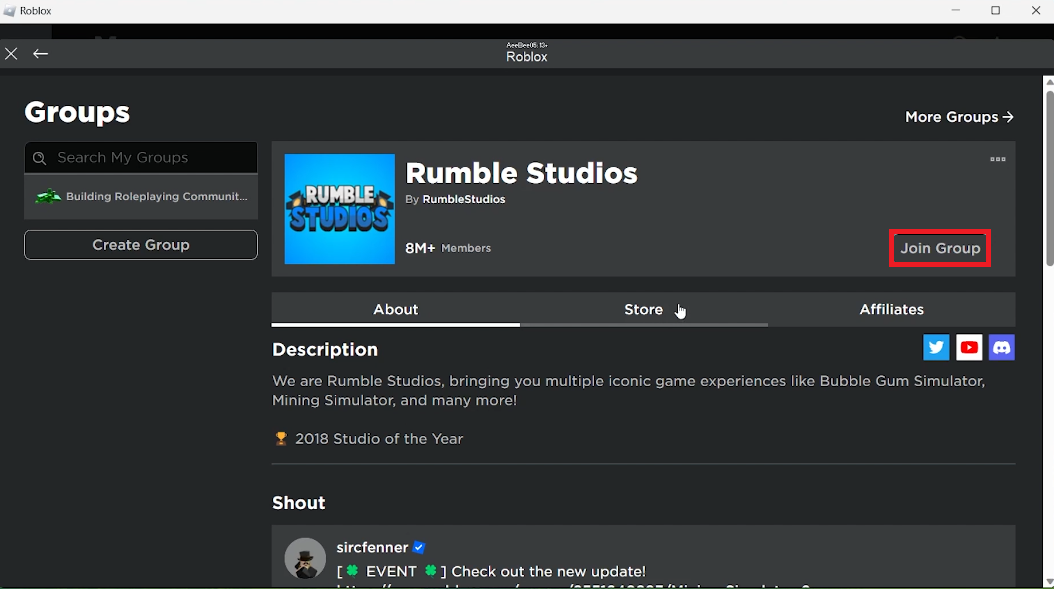
How To Join A Group On Roblox Mobile 2025 YouTube . Roblox Joins On How To Enable Them In 2026 V4 460px Join Groups In Roblox Step 2 . Roblox Find A Group Empty Group Roblox NQFLWV . How To Join Roblox Players Seamlessly A 2026 Guide . How To Join And Leave Groups On Roblox Tutorial Tech How 2 Join Roblox Group


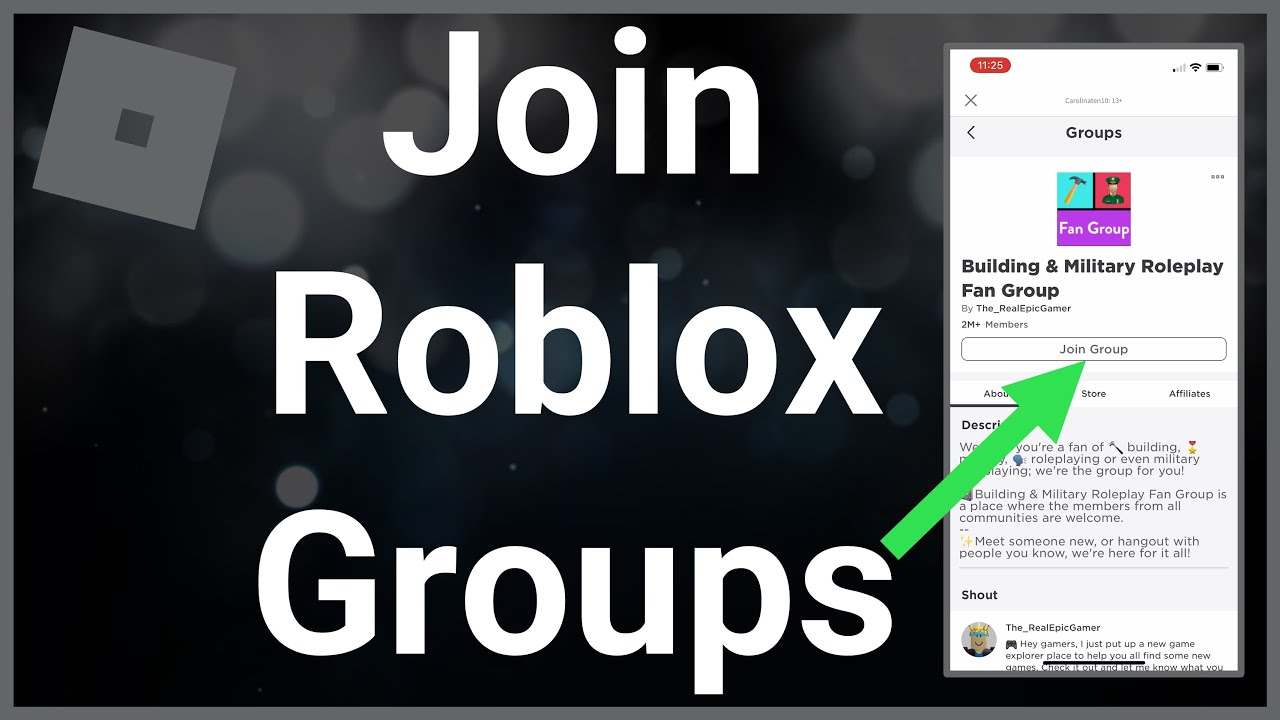


How To Join A Roblox Group 2026 YouTube . Roblox Join Group . Roblox Join Group . How To Make A Join Group Button In Roblox Studio 2025 In Game . How To Join A Roblox Group YouTube


ROBLOX HOW TO JOIN A GROUP How To Leave A Group On Roblox How To . Level Up Your Game Creating A Roblox Group . Roblox People Groups Roblox Join Group NRWMRI . How To Join A Roblox Group Step By Step Guide V G7fxzo. How To Join And Leave Groups On Roblox Tutorial Tech How 3 Leave Group


How To Join A Group In Roblox . Roblox Join Group . How To Join A Group In Roblox . Guide How To Join A Roblox Group Seamlessly How To Fix Unable To Join Group In Roblox . How To Join A Group On Roblox 2020 YouTube



How To Join Leave Groups On Roblox YouTube . How To Join Private Servers On Roblox Mobile In 2026 . How Much Does It Cost To Make A Roblox Group 2026 How To Make A Group On Roblox For Free . How To Create A Group In Roblox Mobile TikTok Img. How To Join Private Servers On Roblox Mobile In 2026 1 How To Join Private Server



How To Join A Group On Roblox 2026 YouTube . How To Join A Roblox Group Step By Step YouTube . How To Accept Roblox Group Join Requests On Mobile Android IOS . Roblox Join Group . HOW TO JOIN GROUPS IN ROBLOX PS5 FULL GUIDE 2026 YouTube